
Student Multi-Factor Authentication (MFA)
Multi-Factor Authentication (MFA) is now available for students for added protection.
If you need any assistance, feel free to contact the Schoolcraft Answer Center at (734) 462-4426 or email us at [email protected]
Available MFA methods include:
- Microsoft Authenticator app
- Schoolcraft strongly recommends Microsoft Authenticator since our support teams are most experienced with it. You are welcome to use another authenticator app, but we cannot guarantee support for other apps.
- SMS text message
- Voice calls
How do I enable MFA?
(1) MFA will automatically be enabled for New Students. Current Students will have MFA enabled upon their next login.
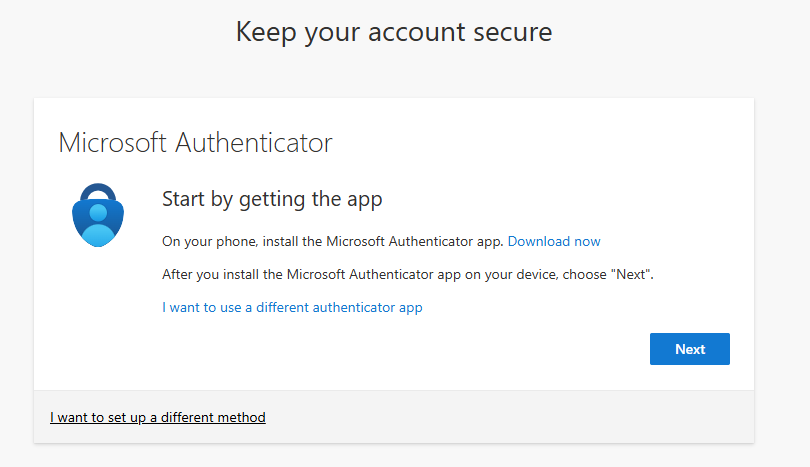
(2) On your next login, you’ll be prompted to set up Microsoft Authenticator. If you do not want to use Microsoft Authenticator, use the blue link “I want to use a different authenticator app” to use another Time-based One-Time Password (TOTP) compatible app, or use the “I want to set up a different method” to use SMS text messages or voice phone calls.
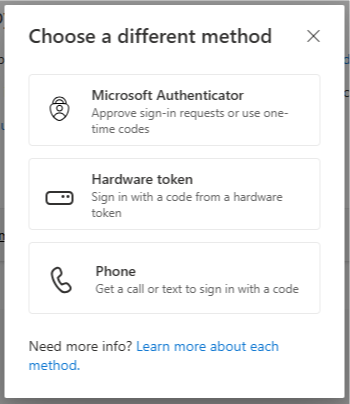
(3) If you chose set up a different method, you can choose Phone if you would like to receive an SMS text message or voice call.
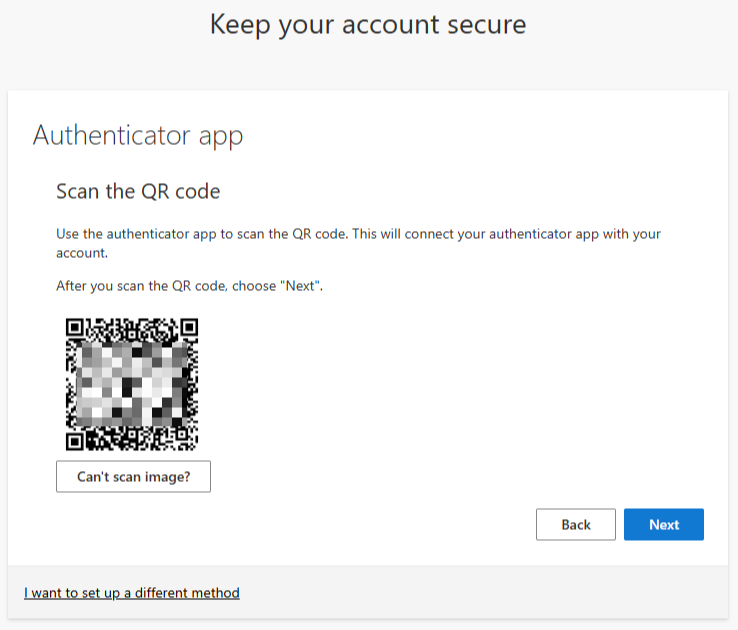
(4) If you are setting up another Time-based One-Time Password (TOTP) compatible app, you can scan the QR code that is displayed or use the Can’t scan image? button to copy the secret needed by your app.
How do I reset my MFA options?
If you need to reset your MFA options after getting a new phone or device, visit the Student MFA Reset page.
- Complete the form to receive a one-time reset link.
- After using the link, you’ll set up a new MFA method at your next login.
What MFA methods are available?
- Microsoft Authenticator
Download the free app from the Apple App Store or Google Play Store. Enter the code it displays when logging in. Need help with the Microsoft Authenticator app? Read Microsoft Authenticator FAQs. - Time-based One-Time Password (TOTP)
Use a third-party authenticator app (such as Google Authenticator, Authy, Bitwarden, or 1Password) to generate a unique 6-digit code that changes every 30 seconds.- When you log in, open your app and enter the current code.
- Works even without internet or cell service, because codes are generated on your device.
- SMS text message
Receive a text with a one-time code to enter when logging in. - Voice call
Receive a phone call with a one-time code to enter when logging in.
Why is MFA required?
Protects your account: Even if someone learns your password, they can’t log in without the second step.
Prevents phishing and hacking: MFA blocks most attempts by attackers to steal or misuse your account.
Safeguards personal information: Helps keep your grades, financial aid, and personal data secure.
Recommended best practice: Many colleges, banks, and major services require MFA because it’s one of the easiest and most effective ways to protect accounts.
Best security choice: If you’ve read this far, you clearly care about your account security — we strongly encourage you to use Microsoft Authenticator or another TOTP authenticator app as your MFA method. They are more reliable and secure compared to SMS text messages and voice phone calls.